

Gaussian Splat Editor
Edit Gaussian Splats on your own GPU
Open a PLY, SOG or SPZ file, select the splats you don't want, delete them and export a clean scene. LichtFeld Studio is a free, open-source Gaussian Splat editor for Windows and Linux, with the trainer built in.
- 8 selection tools Brush, rectangle, polygon, lasso, ring, color, box and sphere
- Floater cleanup Histogram and depth selection for large, transparent Gaussians
- Opens 7 formats PLY, SOG, SSOG, SPZ, GLB, RAD and USD
- Free and open source GPLv3, for Windows and Linux with an NVIDIA GPU
Quick start
Delete splats in three steps
The most common edit: remove what does not belong in the scene. Every step can be undone.
-
 01
Open and select
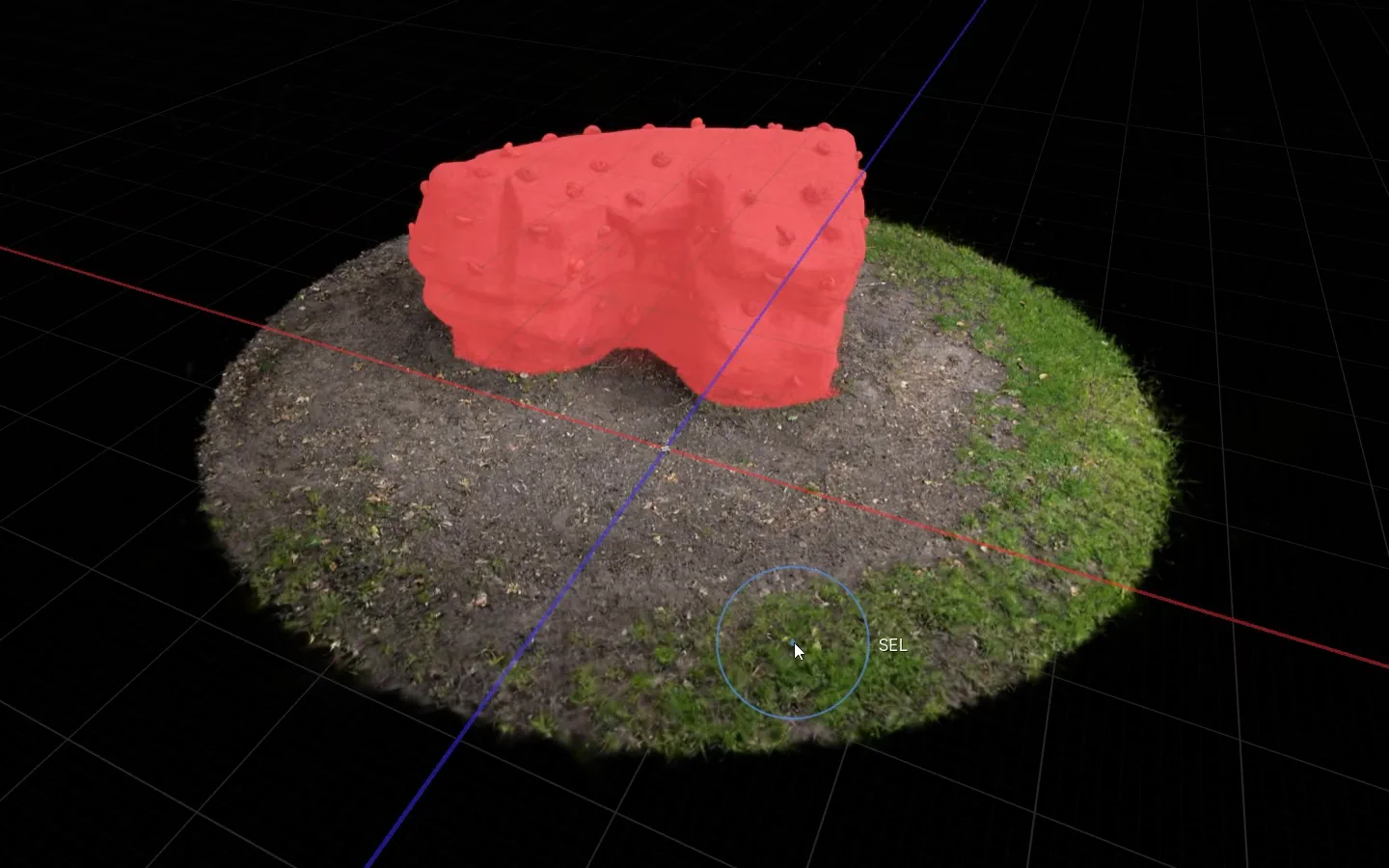
Drop a PLY, SOG or SPZ file onto the window, or use File > Import. Pick the brush in the selection toolbar and paint over the splats you want gone. They turn red.
-
 02
Delete
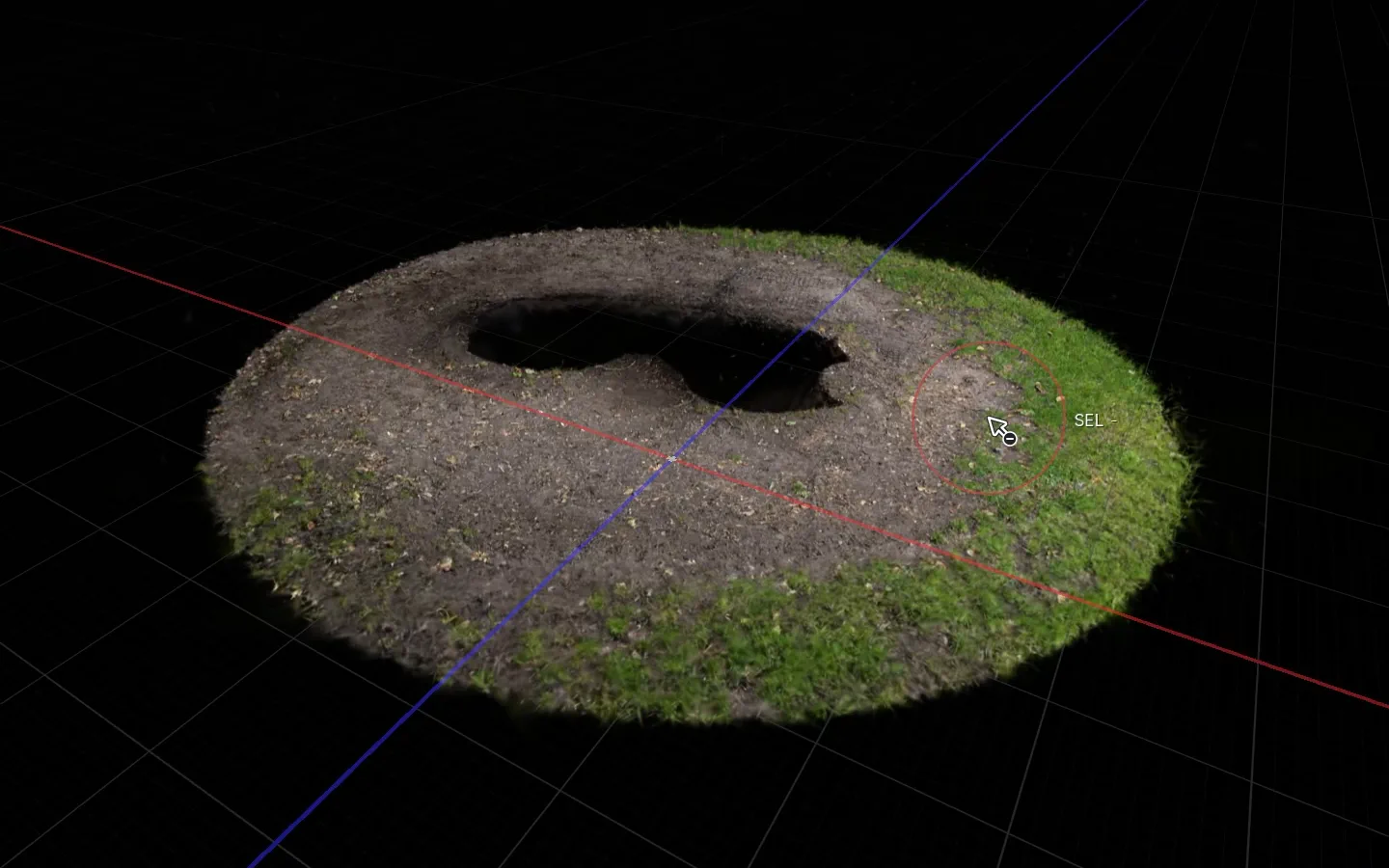
Press Delete. The selected splats leave the model. Ctrl+Z brings them back and Ctrl+Y redoes the step.
-
 03
Export
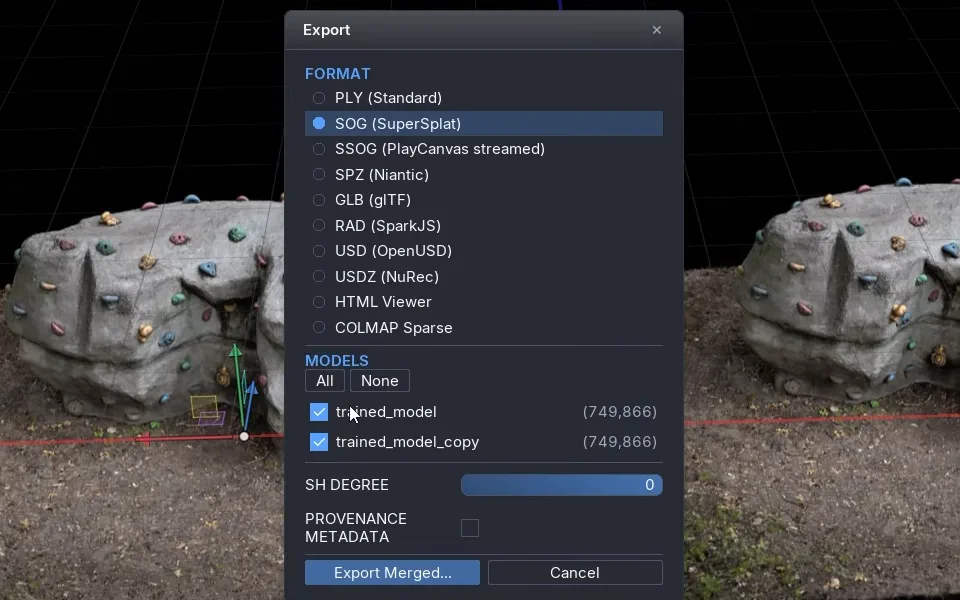
Choose File > Export, pick a format and the models to include. To keep working later, File > Save Project stores everything in one .licht file.
Selection
Eight selection tools, one set of keys
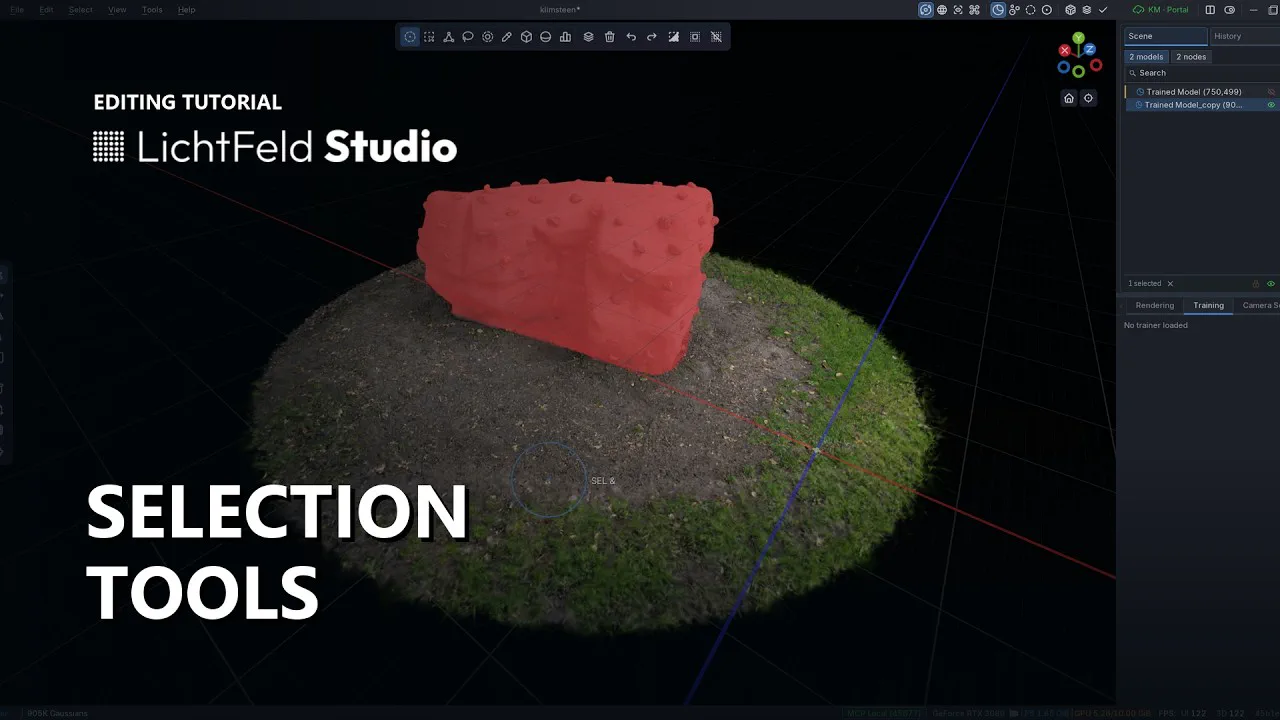
Every tool follows the same modifier keys, so you can build one selection from several strokes and tools before acting on it. Delete is the common case; you can also copy, cut and paste a selection into a new model.
- Drag
- New selection
- Shift
- Add to the selection
- Ctrl
- Remove from the selection
- Alt
- Intersect with the selection
- Ctrl +I
- Invert
- Ctrl +A
- Select all
- Ctrl +D
- Deselect all
- Ctrl +Scroll
- Brush size
-
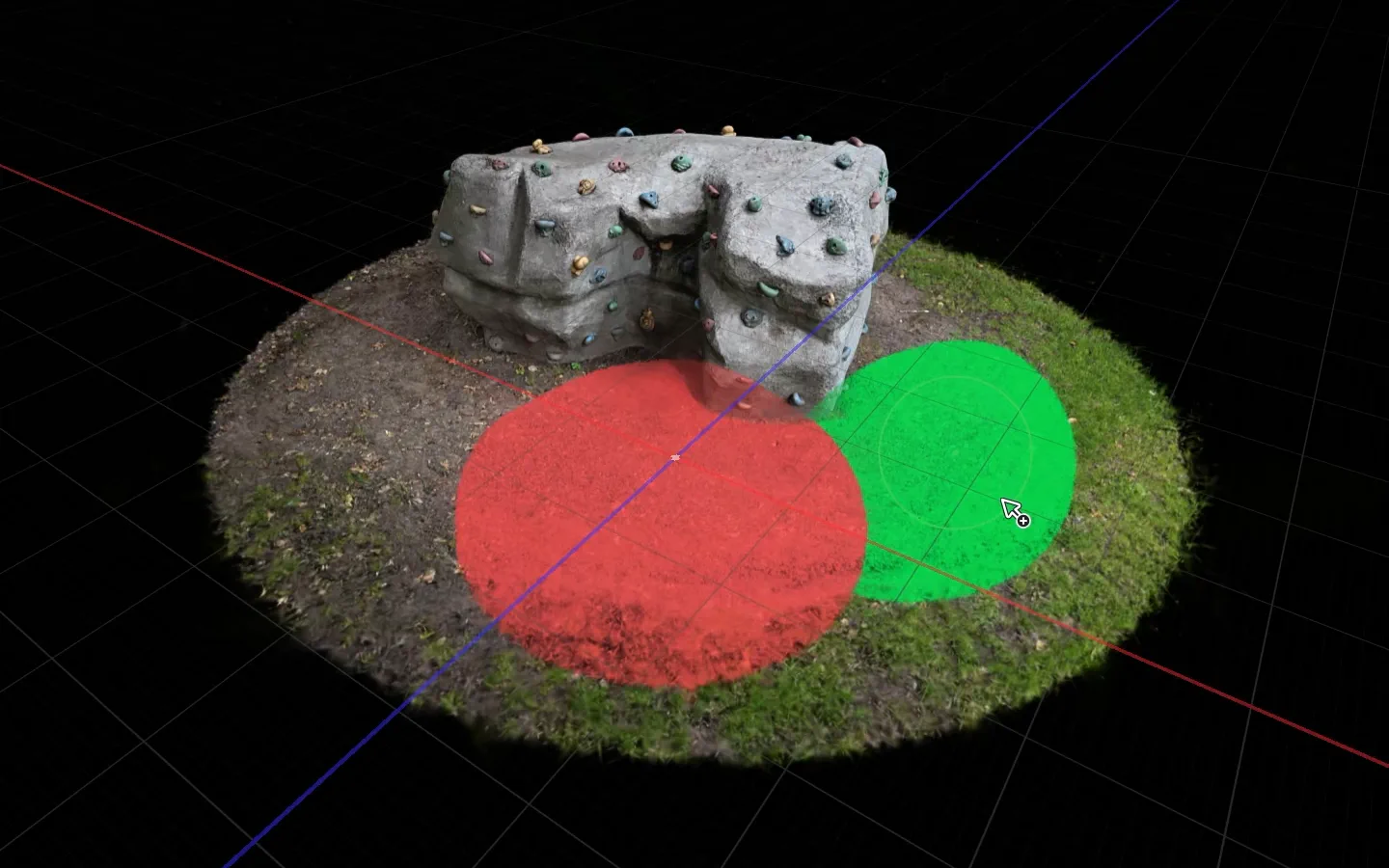
Brush
Paint the selection with the mouse.
-
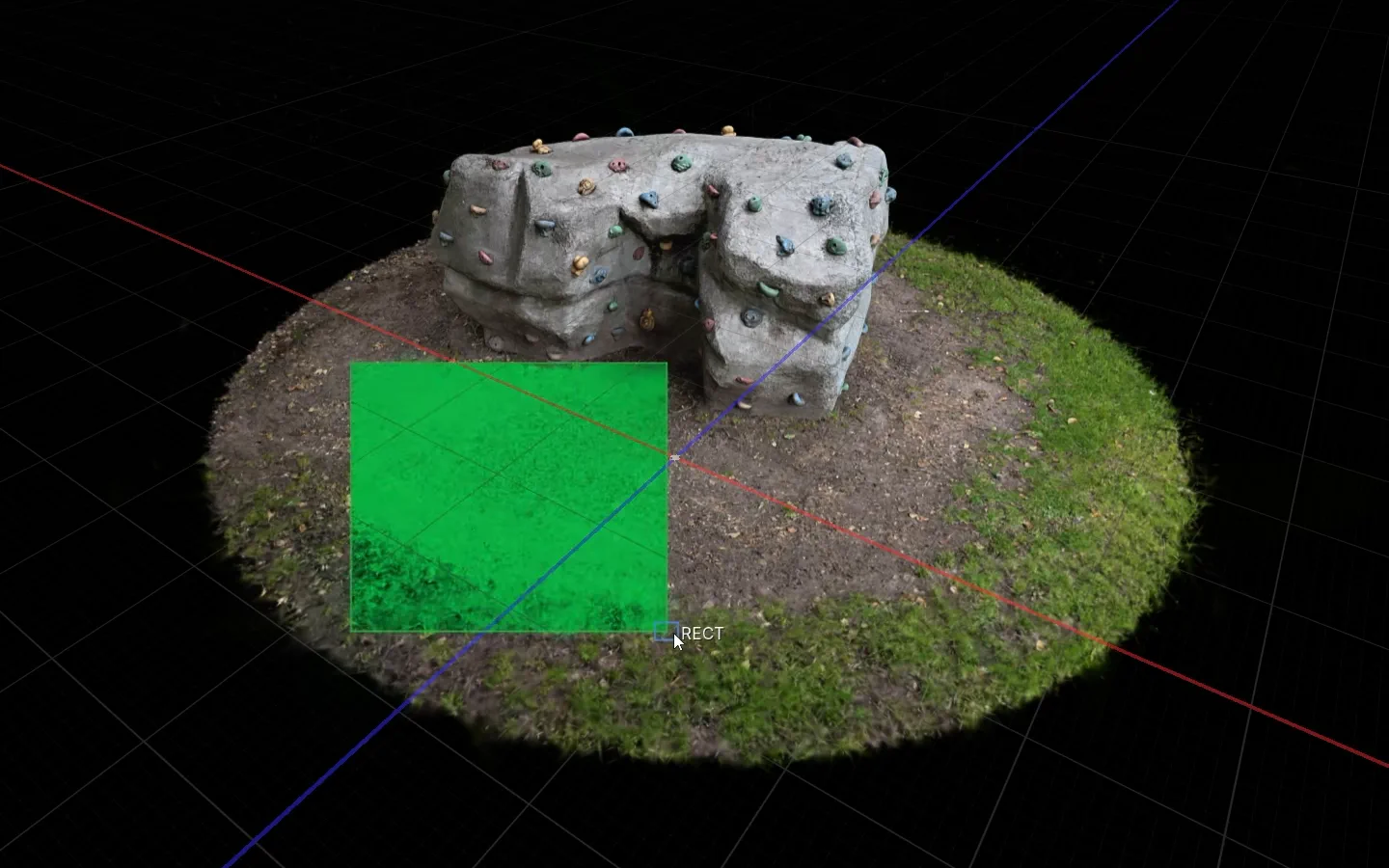
Rectangle
Drag a rectangle on screen.
-
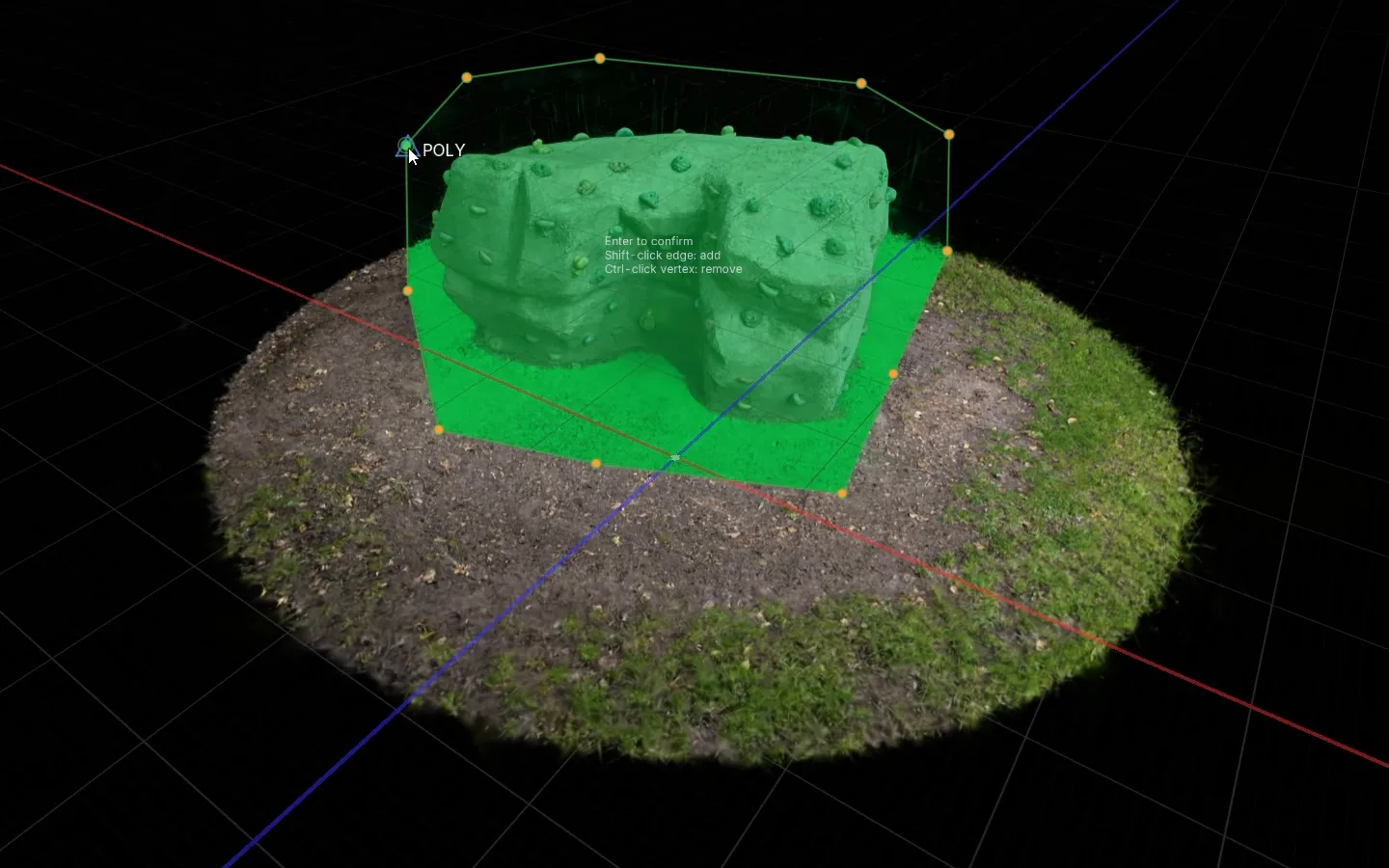
Polygon
Click points, adjust them after the loop closes, press Enter.
-
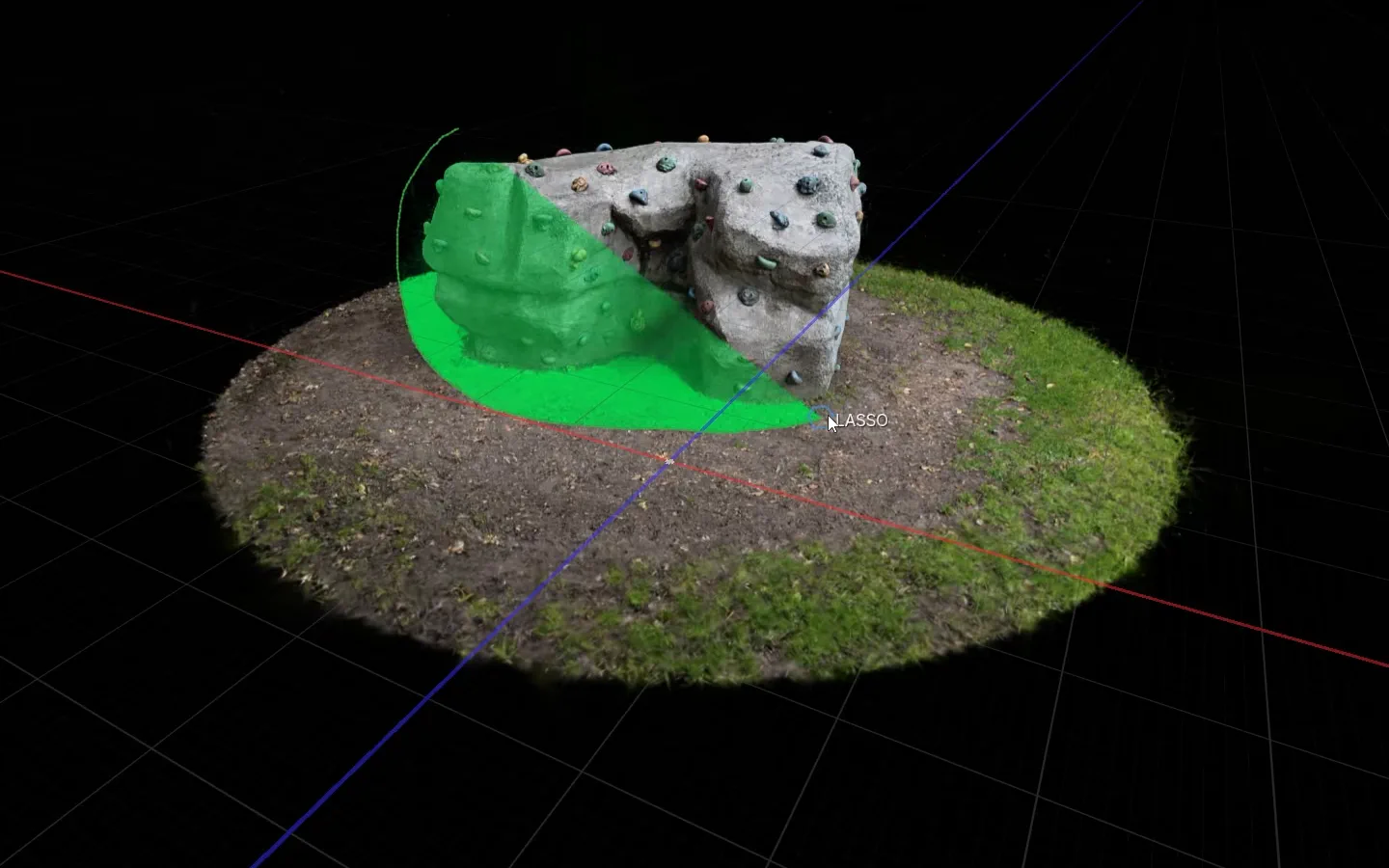
Lasso
Draw a free outline around the area.
-
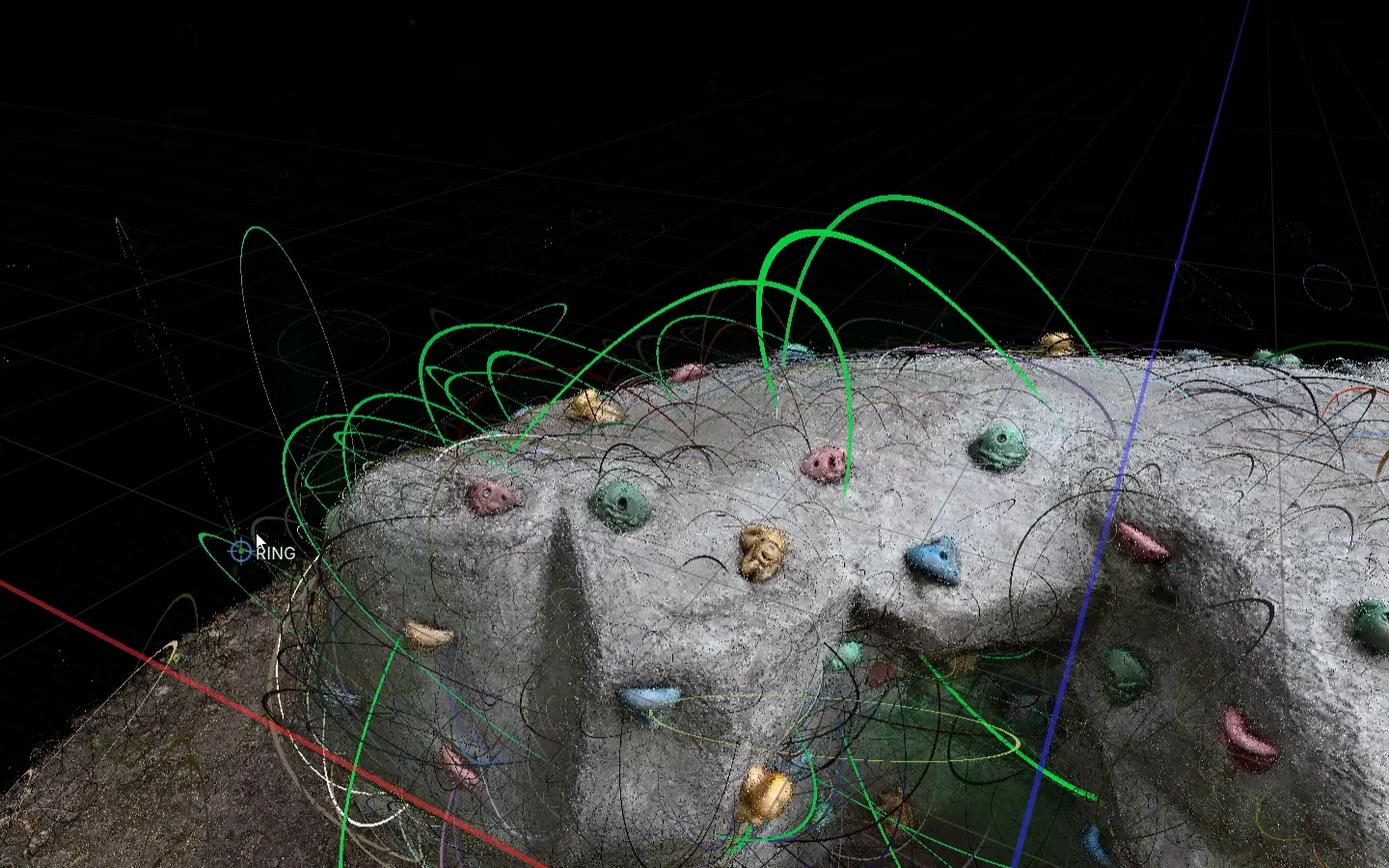
Ring
Selects by each Gaussian's outer ring. Made for large, transparent floaters.
-
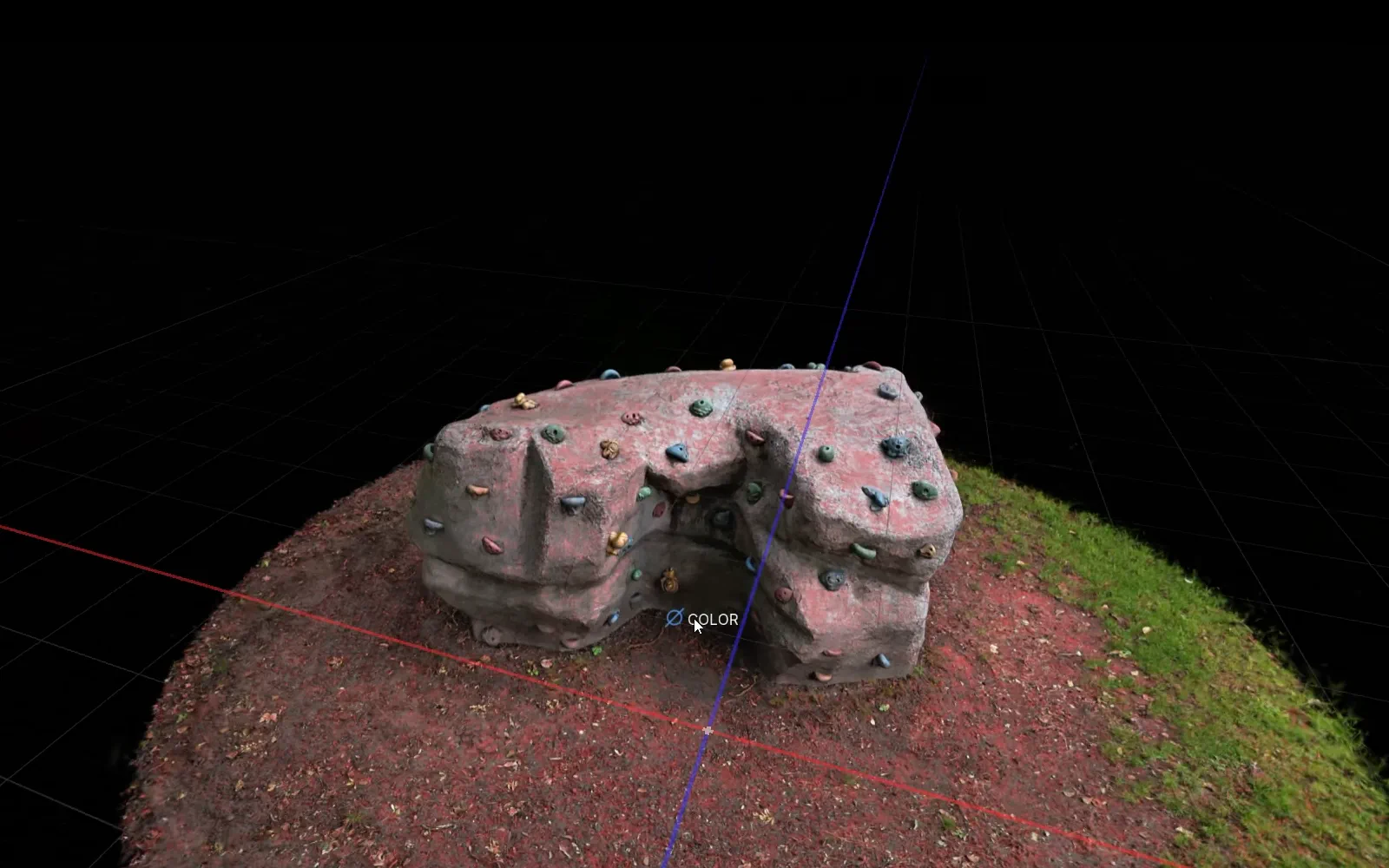
Color
Pick a color with the eyedropper; similar colors are selected too.
-
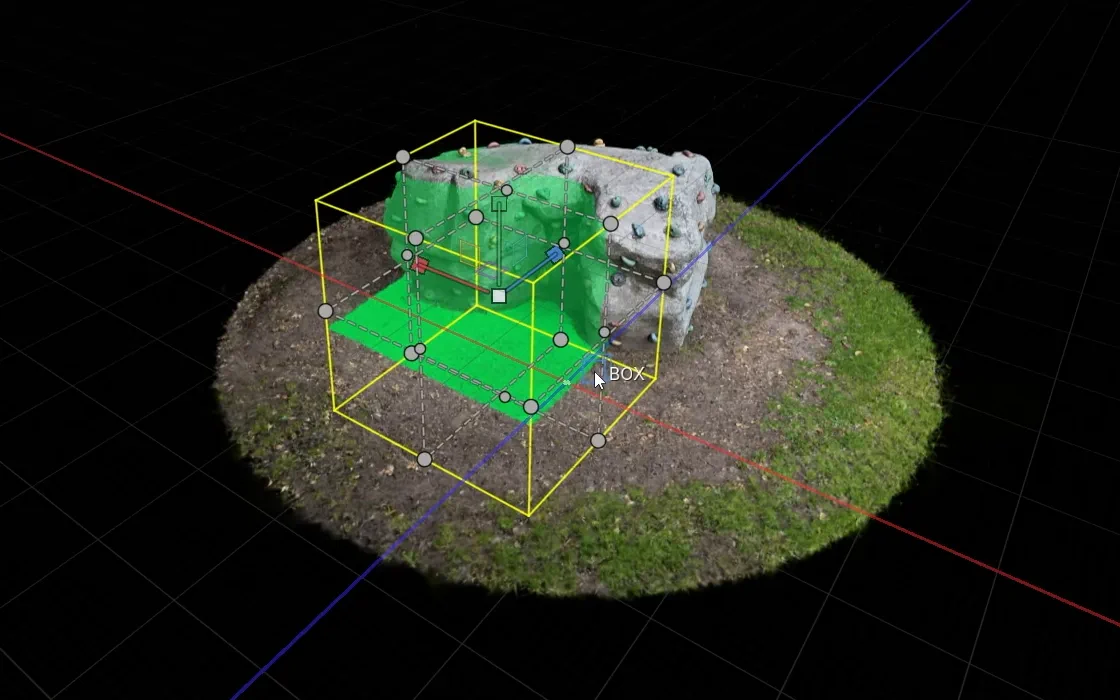
Box
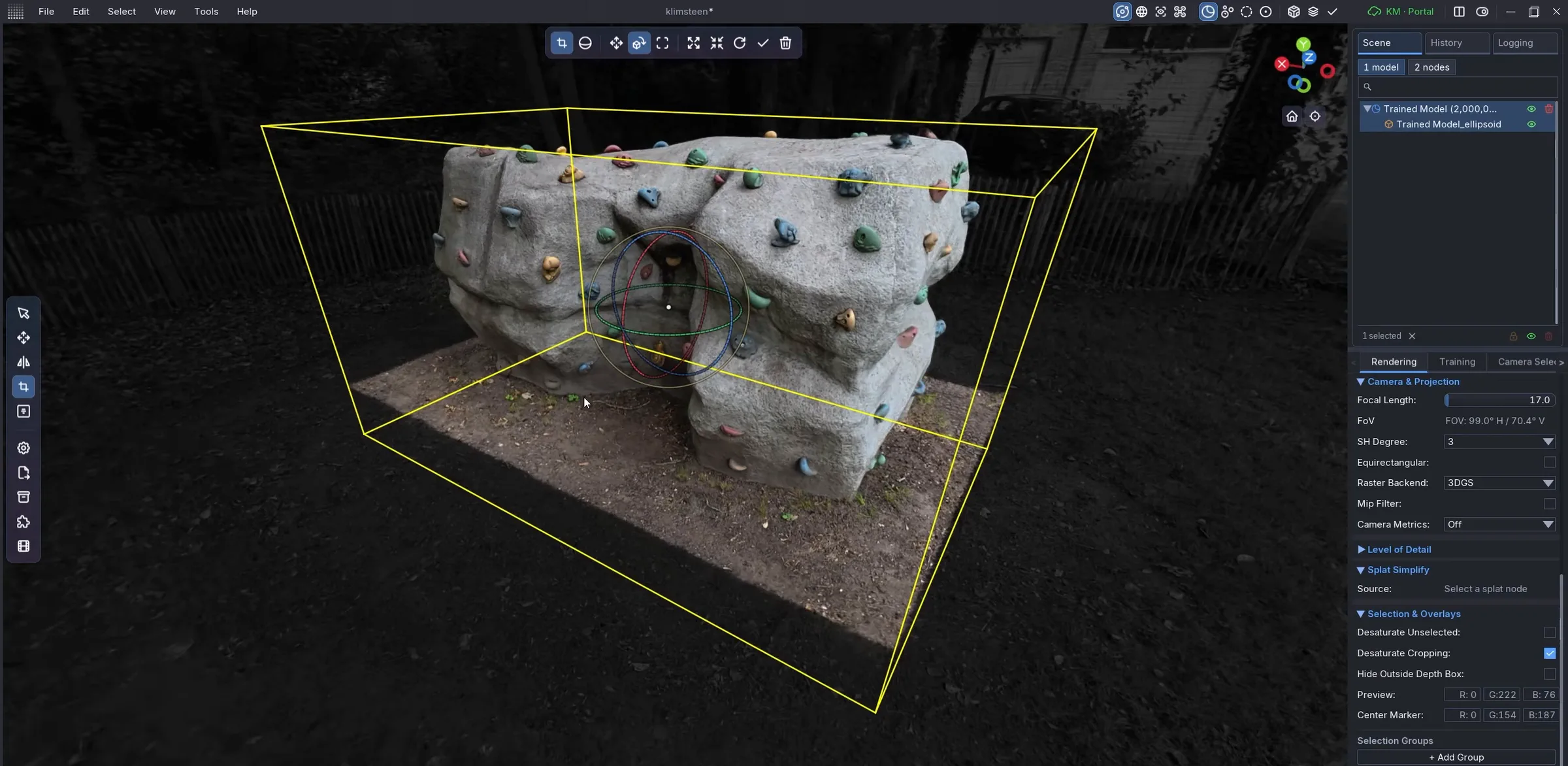
A 3D box to move, rotate and scale. It selects instead of cropping.
-
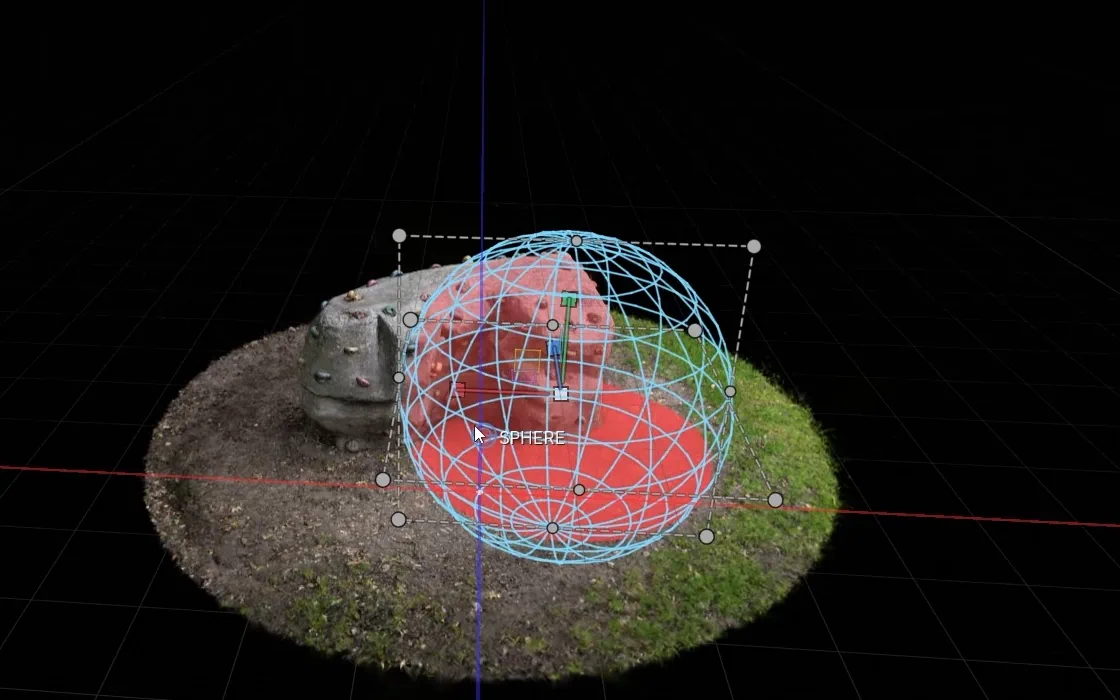
Sphere
The same as a sphere, for rounded regions.
Clean up
Find floaters by what they are
Floaters are usually large and nearly transparent. LichtFeld Studio selects them by those numbers, and it can limit any tool to a slice of depth so the surface behind stays untouched.
Histogram selection
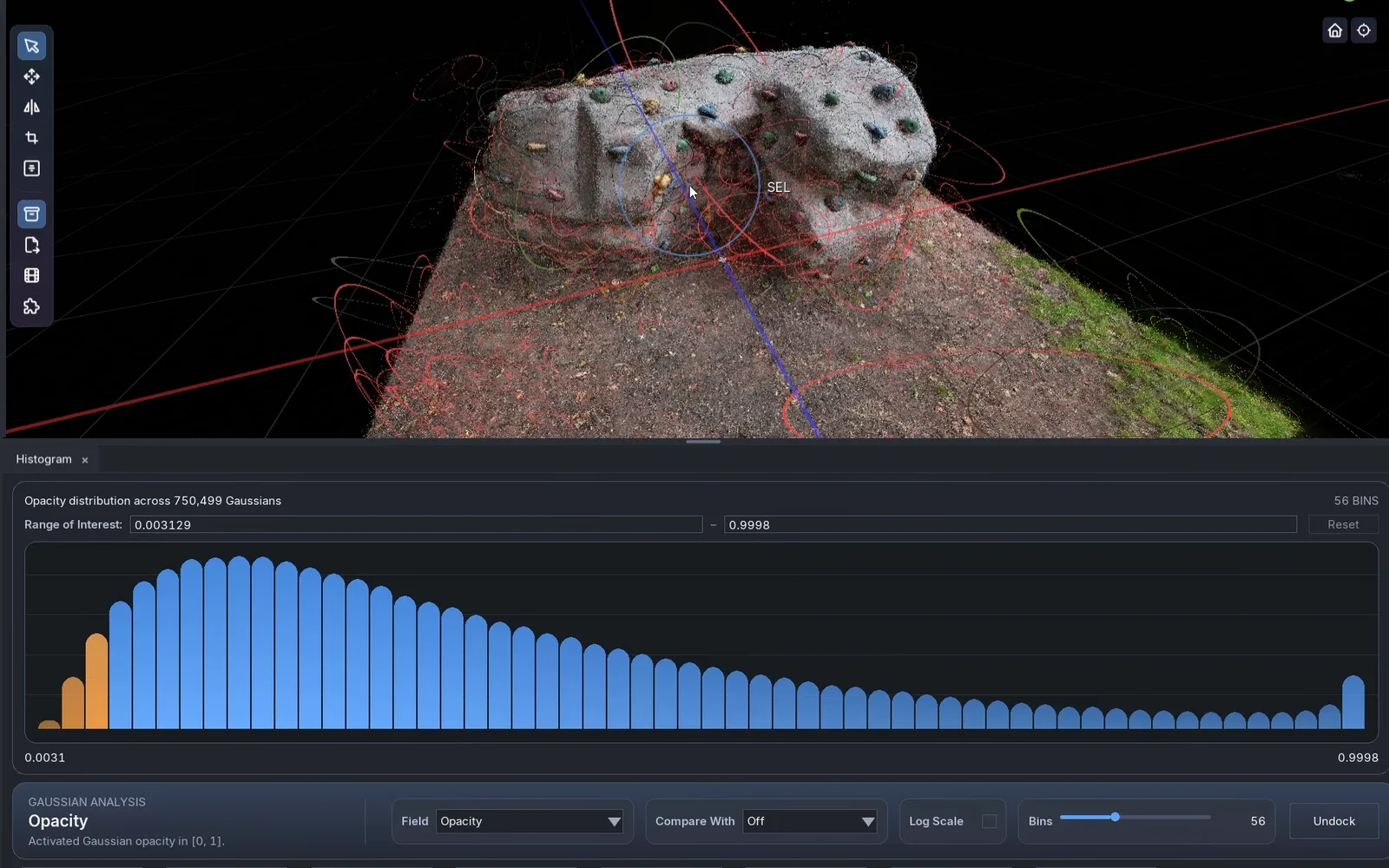
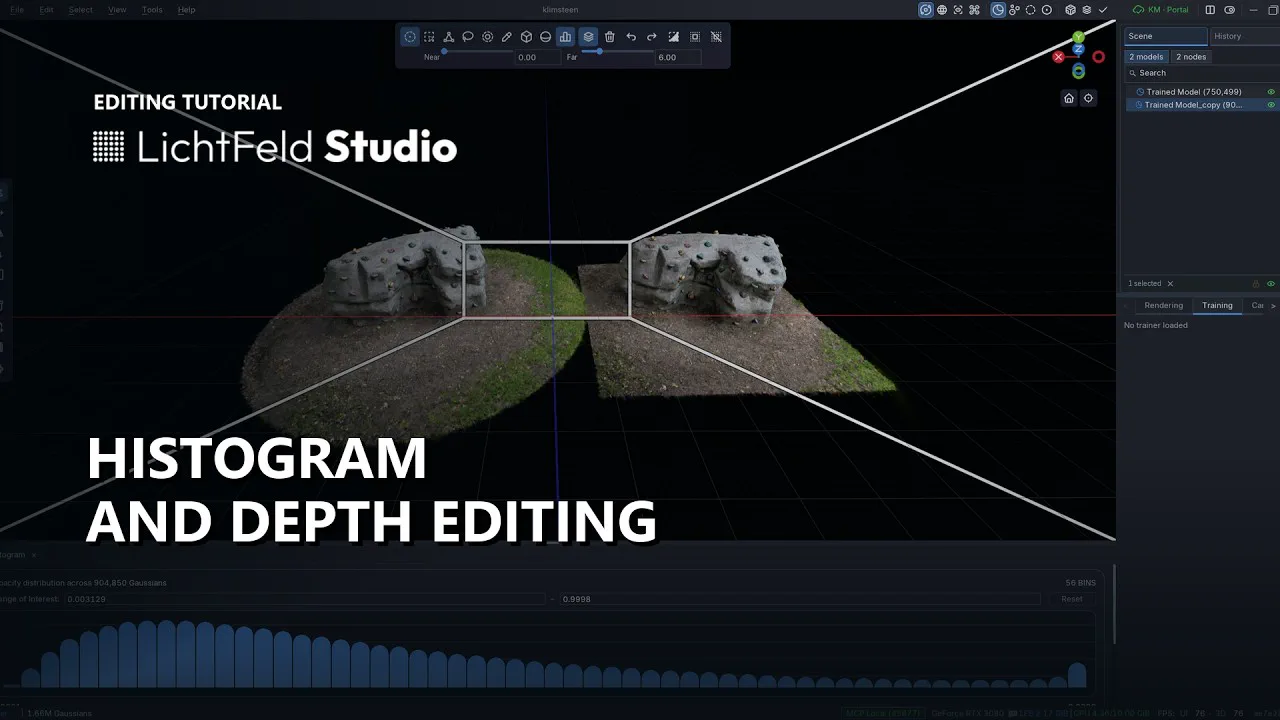
The histogram plots opacity, scale and distance across every Gaussian in the model. Drag across the bars to select: the low end of opacity for splats you can barely see, the high end of maximum scale for oversized ones.
Compare two metrics, such as maximum scale against opacity, to select exactly the large, transparent Gaussians.
Depth selection
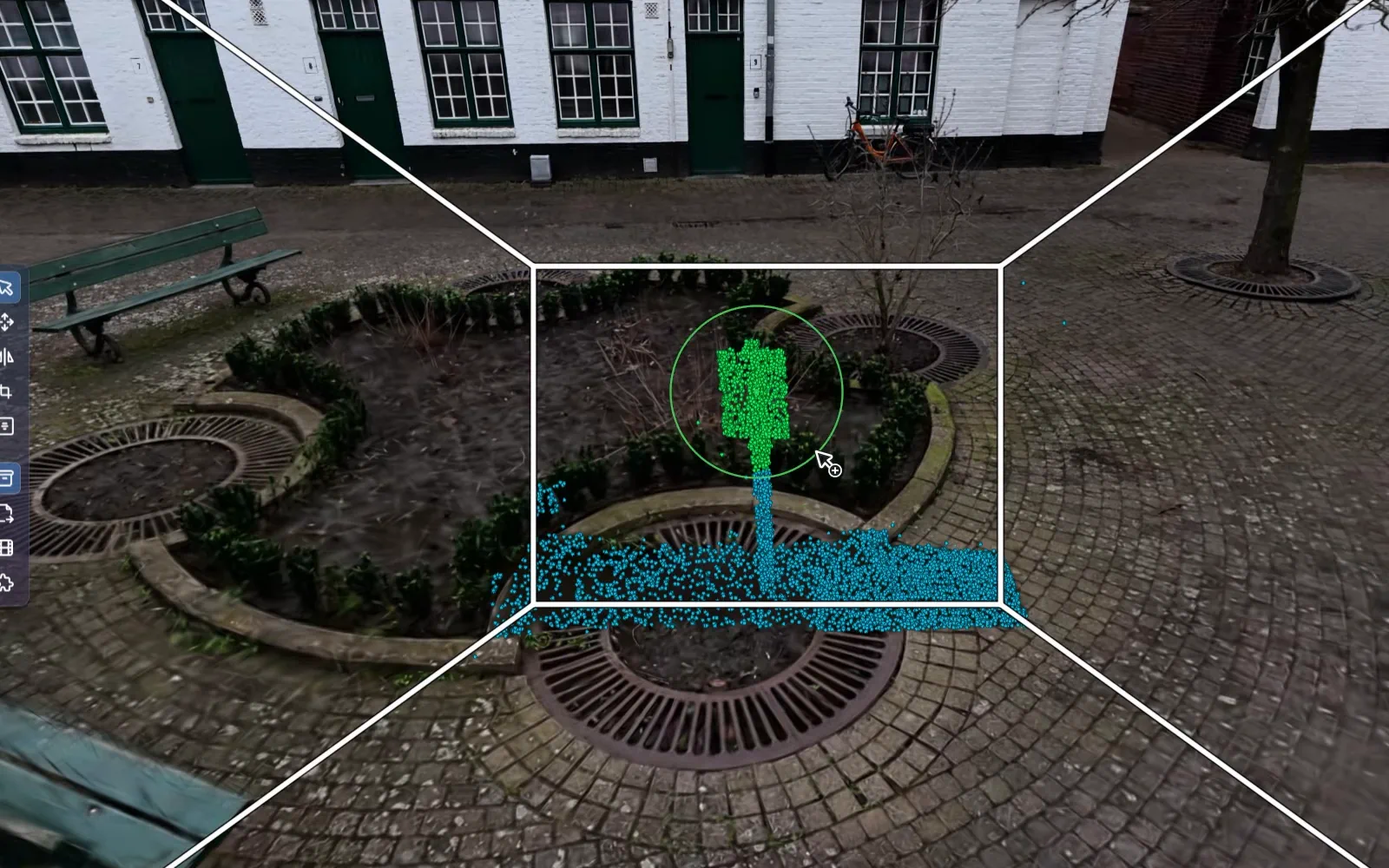
The depth box restricts every selection tool to a near and far range in front of the camera. Set it with the sliders, or hold Alt and scroll to move the far edge. With center markers on, splats inside the box show as blue dots, so you see what a stroke will catch.
To clear a view: stand where it should be clean, turn on the ring view and the depth box, scroll the far edge until the floaters show, and brush them away.
Compose
Crop, straighten and arrange
Isolate a subject, level the ground, and place several models in one scene.
-
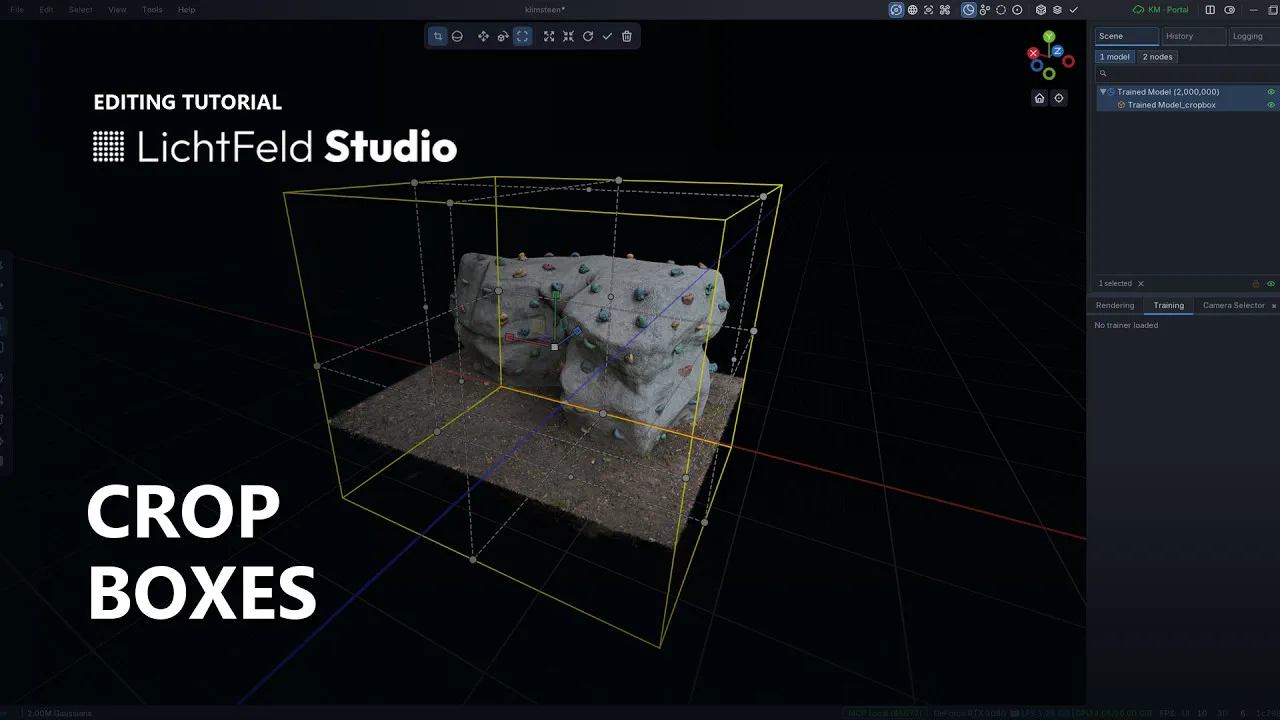
Crop box
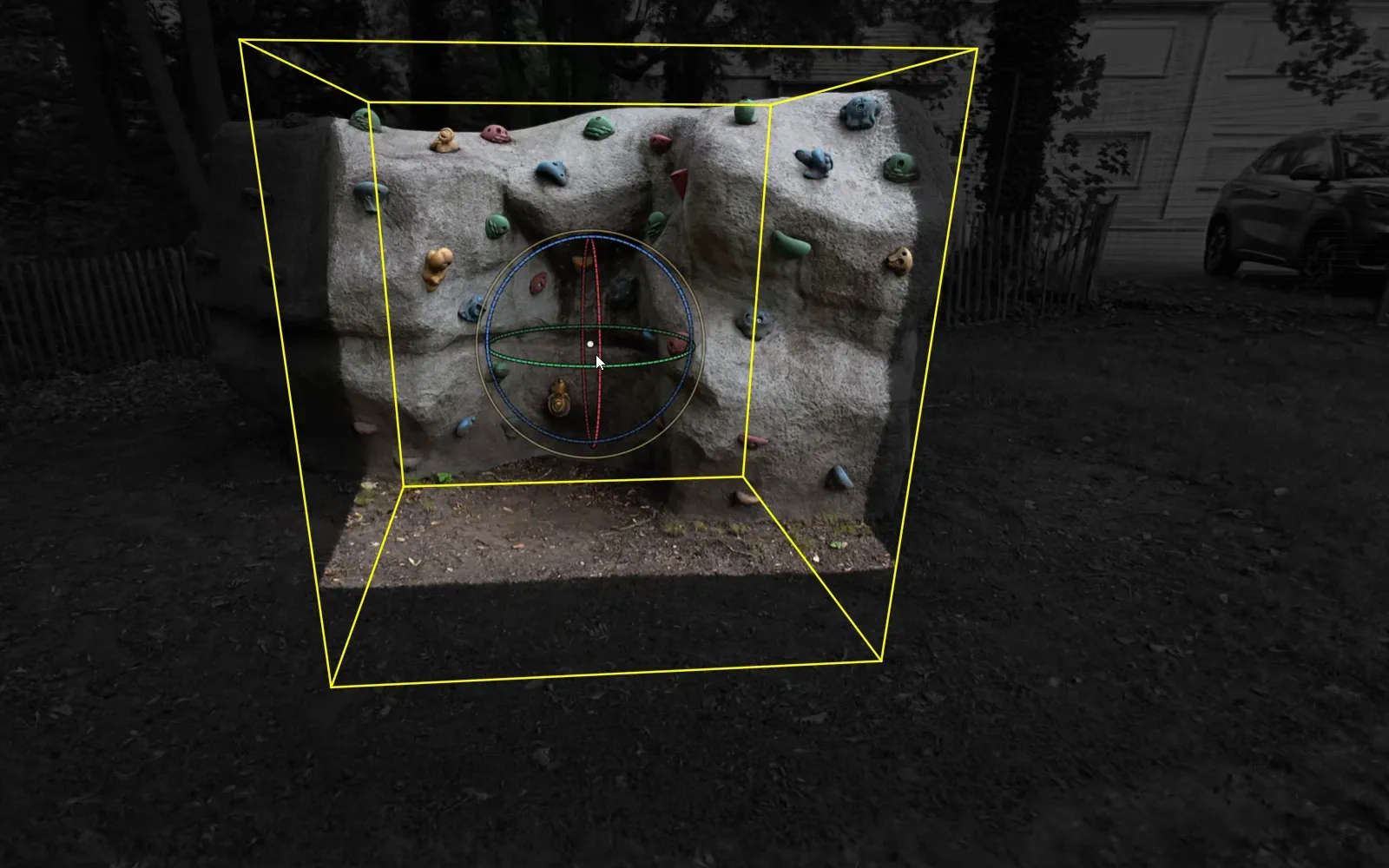
Fit the box to the scene, or use Fit to scene trimmed to leave distant outliers out. Move, rotate and scale it, then press Enter. With Desaturate cropping on, the outside stays visible in gray while you work.
-
Crop sphere
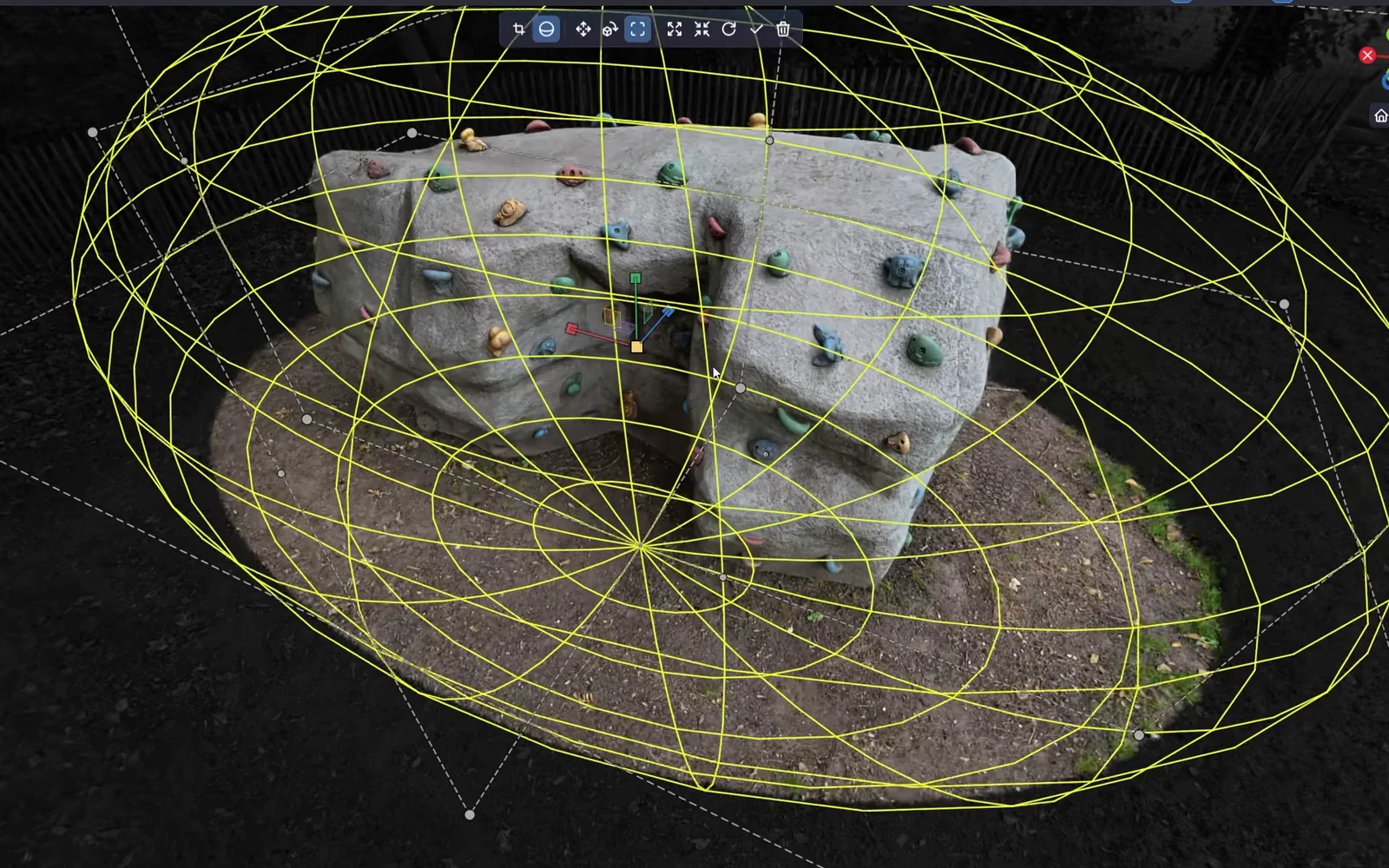
The same with a sphere you can scale on each axis. Duplicate the model first to compare two crops side by side.
-
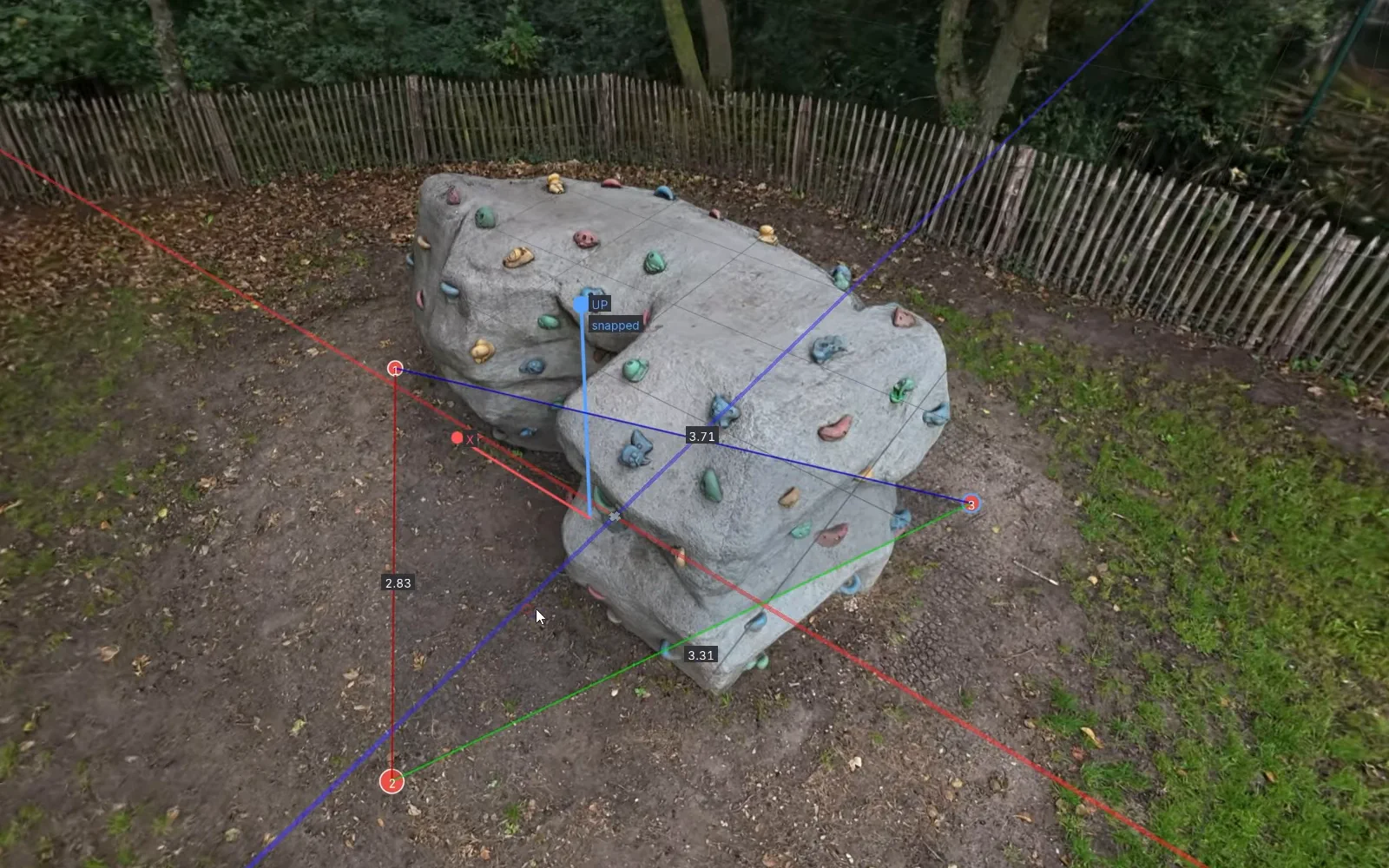
Three-point align
Click three points on the floor. LichtFeld Studio levels the up axis to that plane and can align the X axis with the line between the first two points.
-
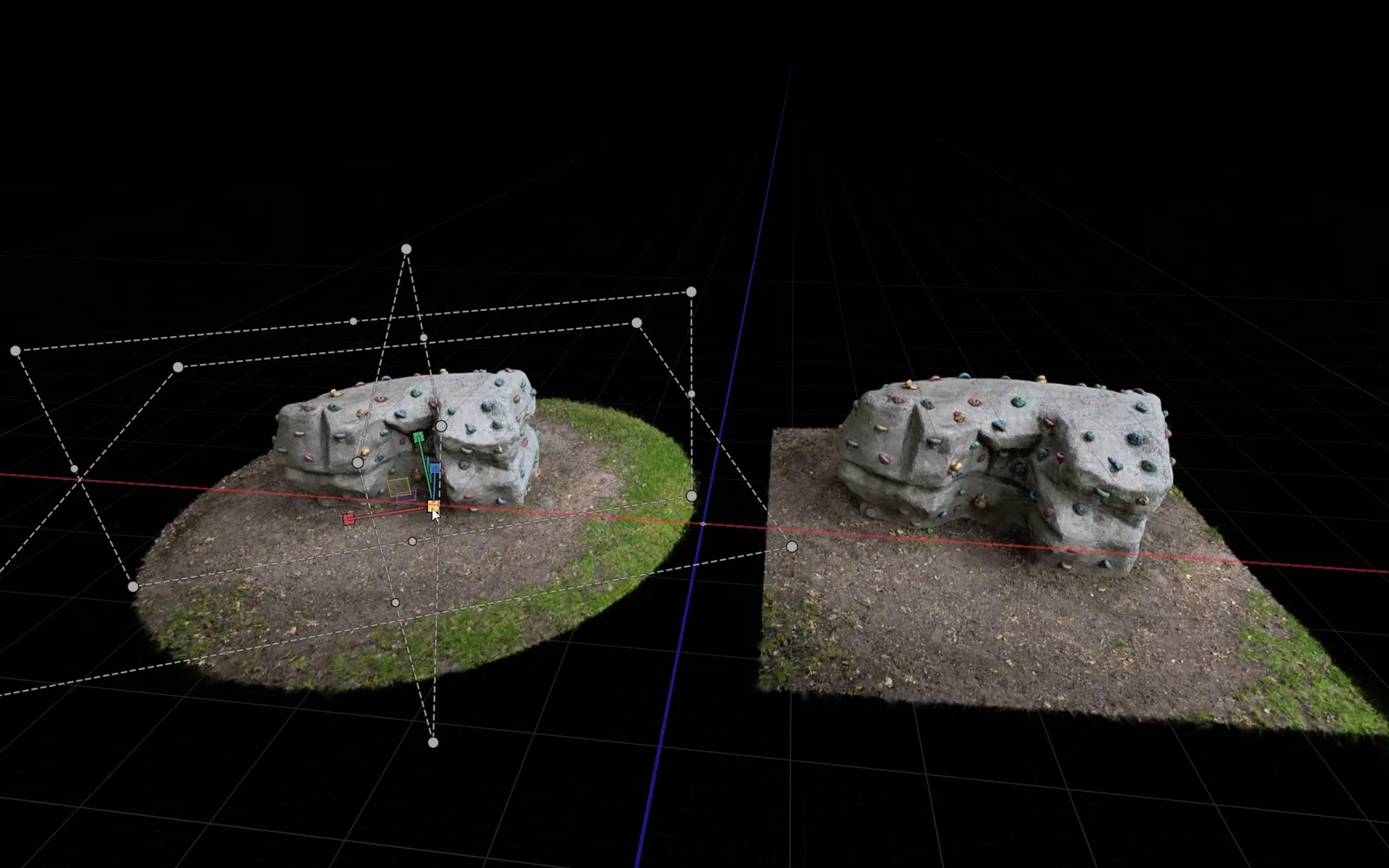
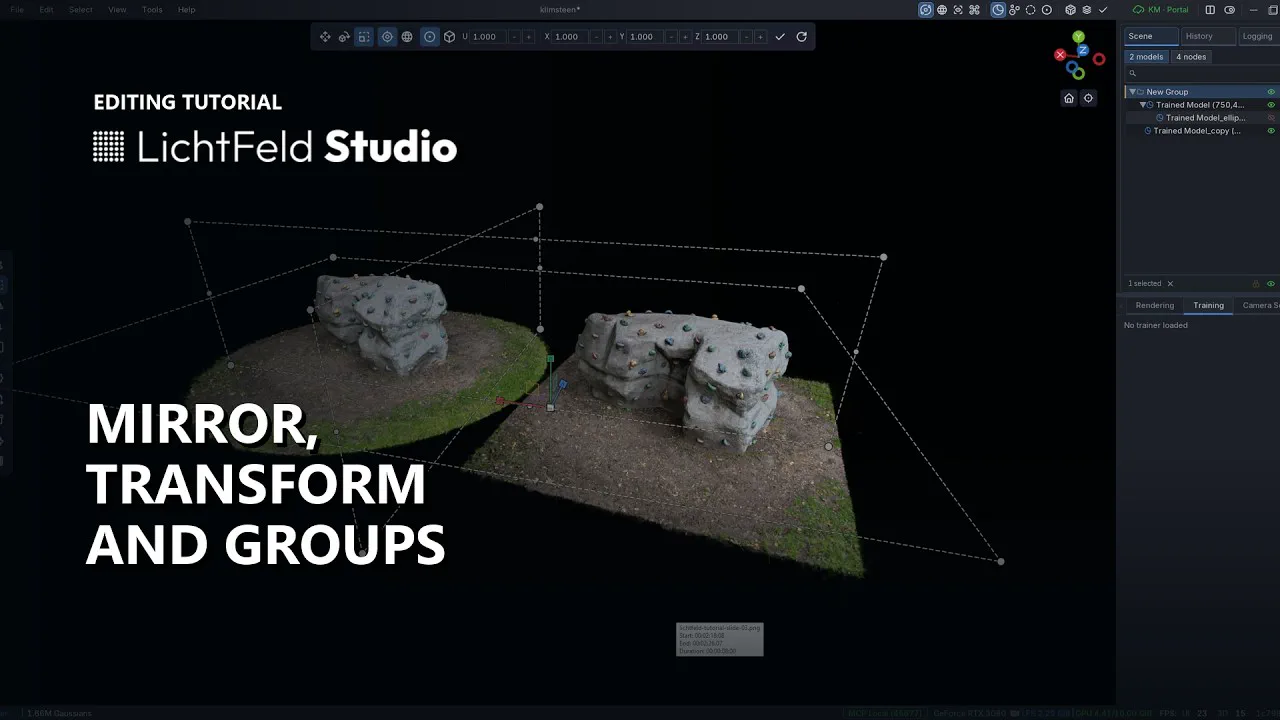
Mirror, transform and groups
Mirror across X, Y or Z, then move, rotate and scale with a gizmo. Group models in the scene panel to transform them together or merge them into one.
Files
Open what you have, export what you need
Opens
- PLY
- SOG
- SSOG
- SPZ
- GLB
- RAD
- USD
- USDA
- USDC
- USDZ
Splats from other tools open directly, including the standard 3DGS PLY that most training apps write. You do not need the original photos to edit.
Exports
- PLY
- SOG
- SSOG
- SPZ
- GLB
- RAD
- OpenUSD
- NuRec USDZ
- HTML viewer
- COLMAP sparse
The HTML viewer export writes a page with the scene that opens in any browser. Several models can be exported together or merged into one file.
Saves and publishes
- .licht project
- Online gallery
A project keeps models, groups, the view and the window layout together. Publish to Gallery in the File menu puts the scene online with a share link that can expire.
Video tutorials
The editing series
Seven short videos, about 20 minutes in total, from navigating a scene to publishing it.
-
Navigation
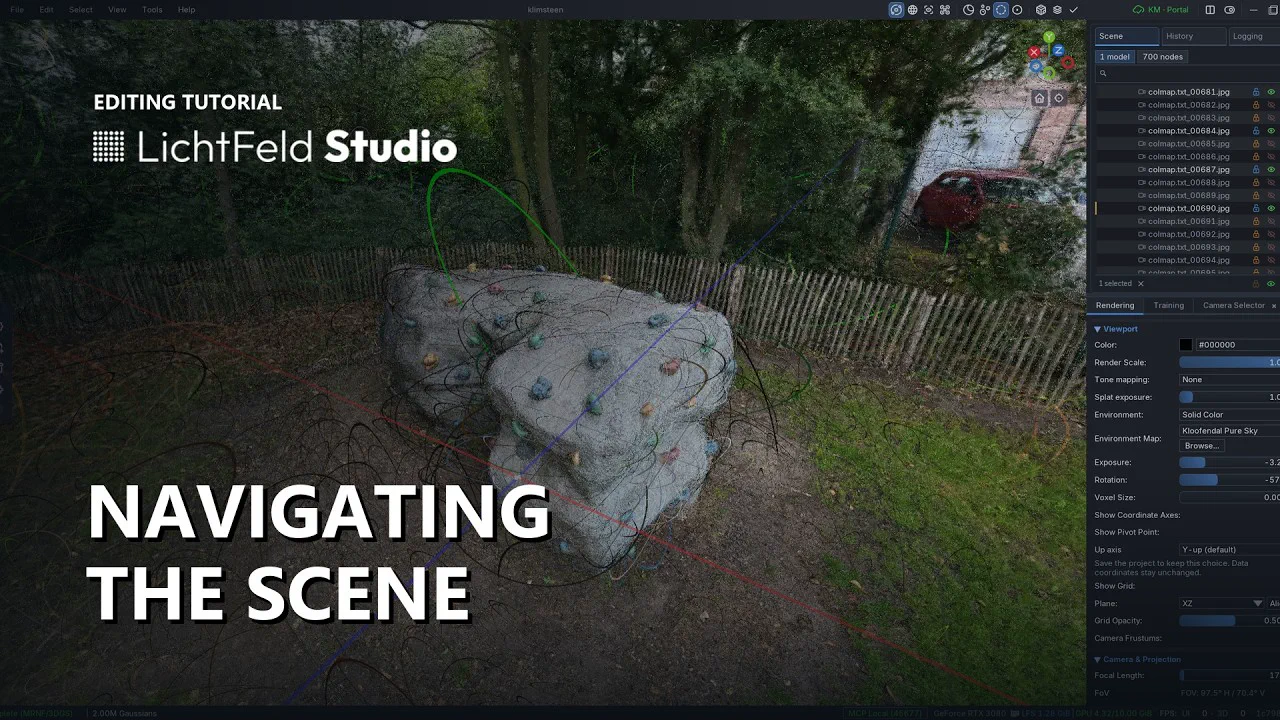
Orbit, pan, fly with W, A, S, D, and the render views that help while editing.
-
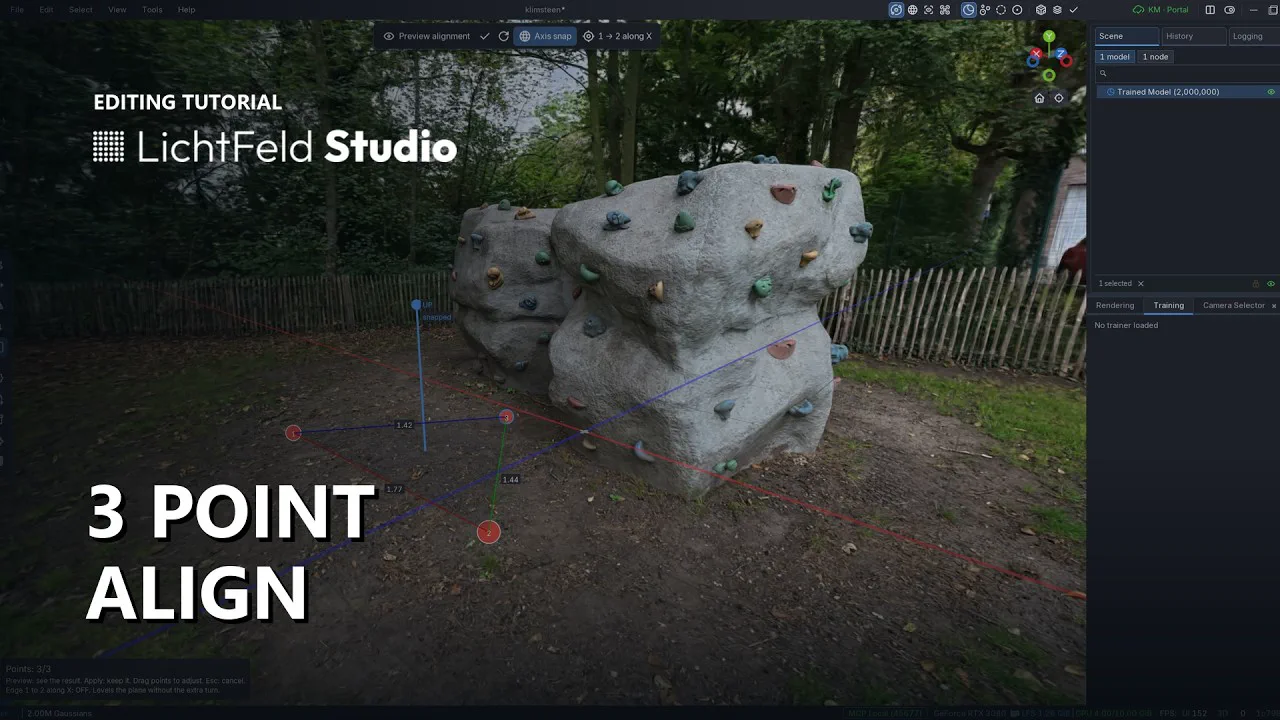
Three Point Align
Level a finished training with three points on the floor.
-
Crop Boxes
Isolate a subject with box and sphere crops.
-
Mirror, Transform and Groups
Flip, move, rotate and scale models, alone or in groups.
-
Selection Tools
Every selection tool and the keys that combine them.
-
Histogram and Depth Selection
Select by opacity and scale, and limit any tool to a depth range.
-
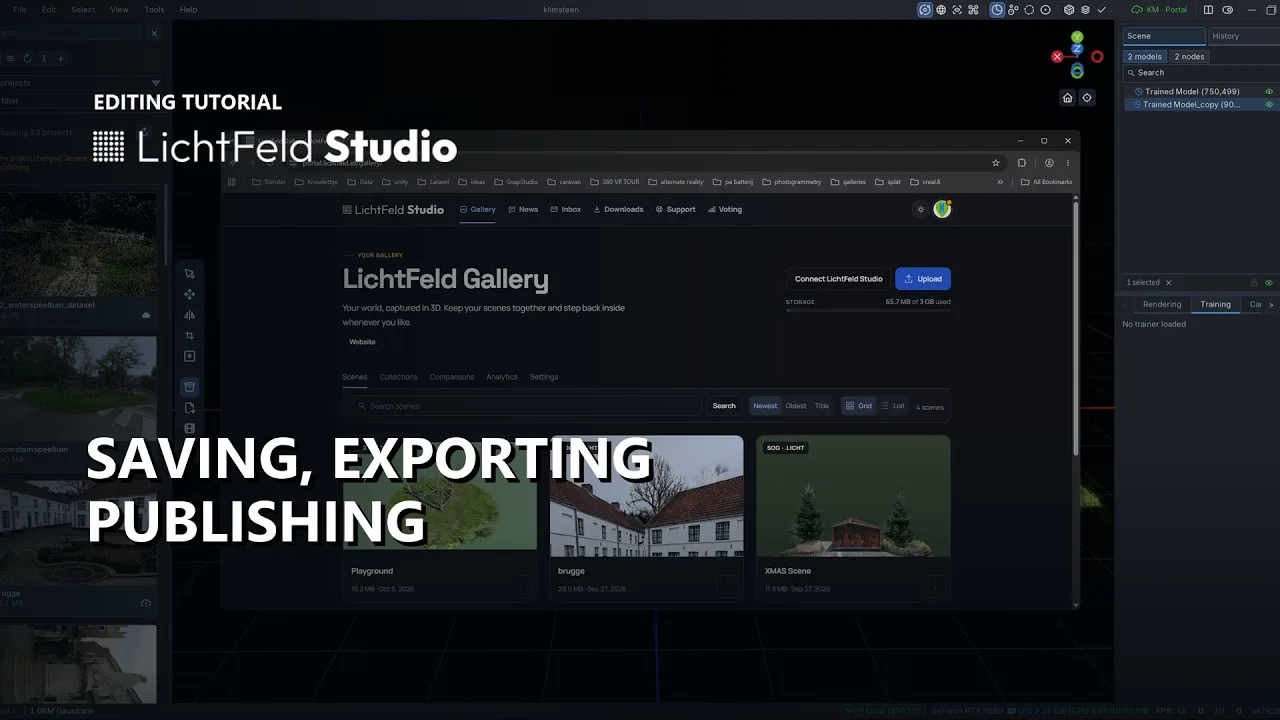
Saving, Exporting and Publishing
Projects, export formats, the HTML viewer and the online gallery.
- 7 videos Watch the whole series on YouTube
FAQ
Questions about editing splats
- How do I delete splats from a Gaussian Splat?
- Open the file with File > Import or drop it onto the window, choose a selection tool such as the brush, paint over the splats you want to remove and press Delete. Ctrl+Z undoes the deletion. When you are done, File > Export writes the cleaned scene as PLY, SOG, SPZ or another format.
- How do I remove floaters?
- Floaters are usually large and nearly transparent. The ring selection shows each Gaussian as its outer ring so they become visible, and the histogram selects Gaussians by scale and opacity. The depth box limits any selection tool to a depth range, so you can clear the space in front of the camera without touching the surfaces behind it.
- Which file formats can LichtFeld Studio open and export?
- It opens PLY, SOG, SSOG, SPZ, GLB, RAD and USD files (USDA, USDC and USDZ). It exports PLY, SOG, SSOG, SPZ, GLB, RAD, OpenUSD, NuRec USDZ, COLMAP sparse and a standalone HTML viewer.
- Can I edit a splat that was made in another app?
- Yes. Any splat saved in one of the supported formats opens directly, including the standard 3DGS PLY that most training tools export, such as Postshot. You do not need the original photos to edit a splat.
- Is LichtFeld Studio an alternative to SuperSplat or Postshot?
- Yes. SuperSplat runs in the browser and Postshot is a desktop app for training and editing. LichtFeld Studio is a native, open-source desktop app (GPLv3) that trains, edits and exports splats in one place, with Python plugins and MCP for automation. You can build it from source for free; the prebuilt Windows binary is available through the LichtFeld portal for a minimum contribution of $30.
- What do I need to run the editor?
- Windows or Linux and an NVIDIA GPU with compute capability 7.5 or newer (GTX 16 and RTX 20 series and later). Editing uses the same CUDA renderer as training.
- How do I share an edited splat on the web?
- Export it as an HTML viewer to get a page that opens in any browser, or use File > Publish to Gallery to put the scene in your online LichtFeld gallery and share a link to it. Later edits can be published to the same gallery scene again.
- Can I undo an edit?
- Yes. Ctrl+Z undoes the last step, including deletions and crops, and Ctrl+Y redoes it. The file you imported is never overwritten: Export and Save Project write new files.
Clean up your next splat
Get the Windows build from the LichtFeld portal, or build LichtFeld Studio from source on Windows and Linux.